

Plans & Subscriptions
Choose a plan, switch between monthly and yearly billing, upgrade or downgrade, apply a coupon at checkout, and cancel or resume your subscription from the Plans & Billing page.
Every StackMivo team is on a plan. The plan sets how many credits the team receives each month, how many team seats it has, and which features are unlocked. Plans are managed from Plans & Billing in the sidebar and changed on the Change your plan page.
Only the team owner can subscribe, change plans, cancel, resume, or buy credits. Other members see the current plan but the action buttons are disabled with an Owner Only label.
The Plans & Billing page
Click Plans & Billing in the sidebar. The live credit balance is shown next to the link. The page is organised into these sections:
| Section | What it shows |
|---|---|
| Current Plan | Plan name, price, status pill (Active, Canceling, or Past Due), team seat usage, and your next billing date or the date your access ends |
| Credits | Available credits, total purchased, and total used across your projects |
| Buy Extra Credits | One-time credit top-ups (paid plans only, see Credits) |
| Transaction History | Every credit event with its type, description, amount, price, date, and status |
| Invoice History | Your Stripe invoices with View and PDF links (team owner only) |
| Credit Usage by Project | Credits consumed per project, including deleted projects |
| FAQ | Short answers on how subscriptions, upgrades, cancellation, and payment work |
Click Change Plan on the Current Plan card to open the plan chooser.
Choosing a plan
The Change your plan page shows up to three columns:
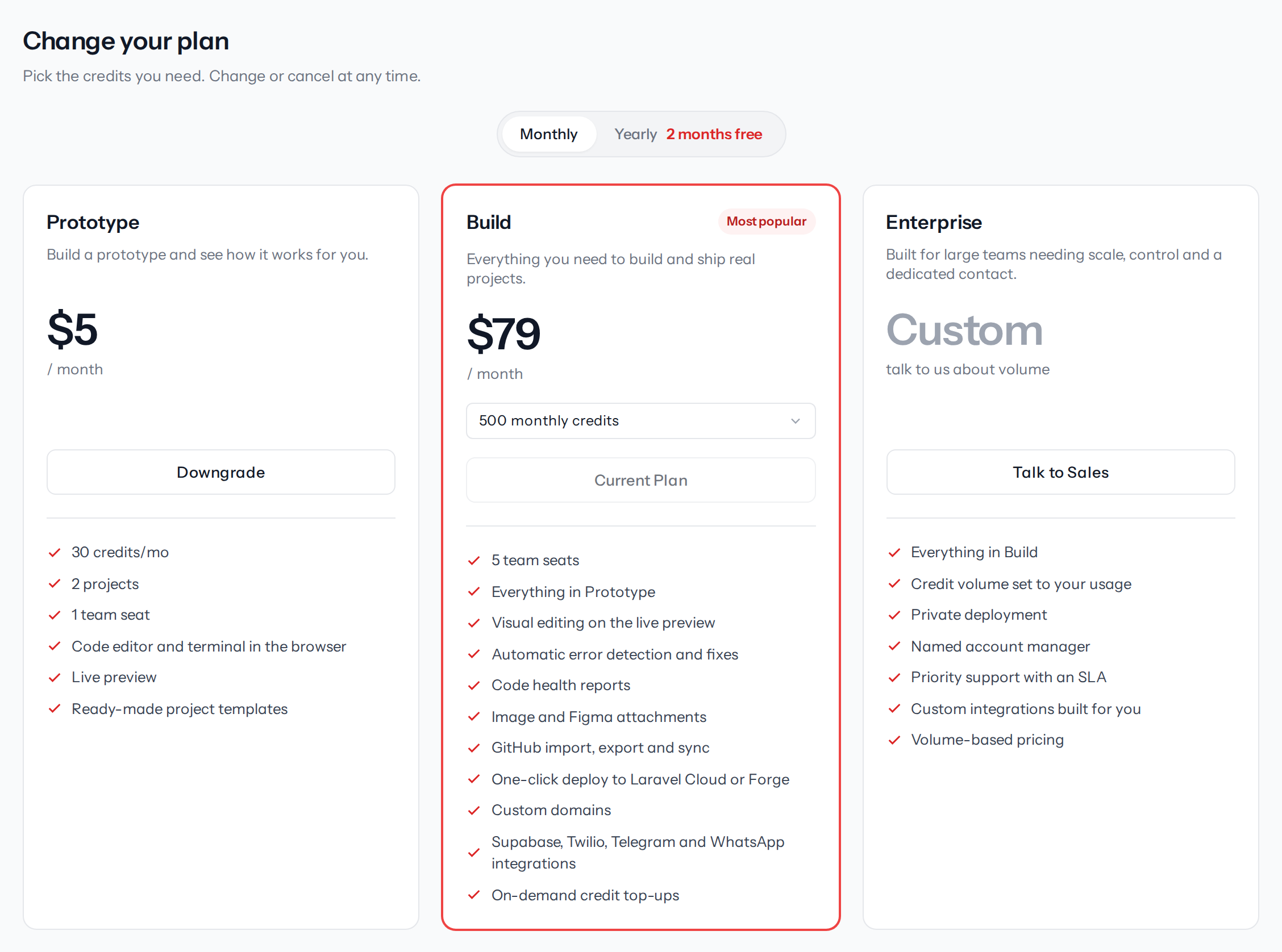
| Column | Description |
|---|---|
| Entry tier | The Free plan, or the low-cost Prototype plan where offered. Best for trying StackMivo and building static prototypes. See Free & Prototype tiers |
| Build | The paid plan for real, full-stack apps. One card with a credit dropdown: pick how many monthly credits you want and the price adjusts. The most popular tier is marked Most popular |
| Enterprise | Custom credit volume, private deployment, a named account manager, and an SLA. Click Talk to Sales to open the contact form |
Picking a credit tier
On the Build card, open the monthly credits dropdown and choose a tier. Each option shows the credit amount, its monthly price, and a Save X% badge when that tier gives you more credits per dollar than the smallest tier. Every Build tier includes the same features. Only credits and team seats change between tiers.
Monthly or yearly
Use the Monthly / Yearly toggle at the top of the page. Yearly billing gives you 2 months free. Prices on yearly are shown per month with the monthly price struck through, and the period line reads / month, billed annually.
If a tier has no yearly price, the card shows Yearly is not available on this tier.
What the button means
| Button | Meaning |
|---|---|
| Subscribe | You have no paid subscription. Opens the checkout dialog |
| Current Plan | This is the plan and billing interval you are on now |
| Upgrade | A more expensive plan or interval than your current one |
| Downgrade | A cheaper plan or interval than your current one |
| Scheduled | A downgrade to this plan is already scheduled for the end of your billing period |
| Coming Soon | This tier is not yet available for online subscription on the selected interval |
| Migrate Billing First | Your team is on the legacy billing system. Use the banner at the top of the page to migrate before changing plans |
Subscribing
- Click Subscribe on the plan you want
- The Subscribe to [plan] dialog opens with a summary of the plan, interval, and price
- Optionally enter a coupon code (see below)
- Click Subscribe to [plan]. You're redirected to Stripe Checkout
- Complete payment. You're returned to Plans & Billing with the message Your subscription is being activated. It may take a moment to reflect.
Your monthly credits are added as soon as Stripe confirms the payment. Payment is processed entirely by Stripe. StackMivo never stores your card details.
If you arrived from a pricing page with a ?coupon= link, the coupon code is pre-filled in the checkout dialog.
Applying a coupon
In the checkout dialog, under Have a coupon?, enter your code and click Apply. A valid coupon shows Coupon applied with the discount (a percentage or a fixed amount) and the summary updates with a Discount line and the new Total.
If the coupon is rejected you see the reason, for example:
| Message | Meaning |
|---|---|
| Invalid coupon code. | The code doesn't exist |
| This coupon has expired. | The coupon's end date has passed |
| This coupon has reached its maximum redemptions. | The coupon has been used the maximum number of times |
| You have already used this coupon. | Each coupon can be redeemed once per team |
| This coupon is not applicable to the selected plan. | The coupon is restricted to other plans |
| This coupon requires a minimum plan price of $X. | Choose a higher tier to use this coupon |
If you don't enter a coupon, Stripe Checkout also offers its own promotion code field.
Upgrading
Upgrades take effect immediately. Click Upgrade on a higher tier or interval. You're taken to Stripe Checkout for the new plan. Once payment succeeds, the old subscription is replaced, your new monthly credit allowance is applied, and unused time on the previous plan is credited toward your next invoice.
Downgrading
Downgrades are scheduled for the end of your current billing period, so you keep everything you paid for.
- Click Downgrade on a lower tier or interval
- The Downgrade to [plan]? dialog explains that your current plan stays active until the end of the billing period and the new plan starts automatically when it expires
- Click Yes, Downgrade
Back on Plans & Billing, the Current Plan card shows Switching to [plan] after current period and the status pill reads Canceling until the switch happens. On the plan chooser, the target plan's button reads Scheduled.
After scheduling a downgrade, further downgrades and resuming are locked for 24 hours. The message tells you the exact time the lock lifts. Upgrading is still allowed during the lock.
Cancelling
- On Plans & Billing, click Cancel on the Current Plan card
- The Cancel Subscription dialog confirms the date your plan stays active until, and that you'll be moved to the Free plan after that
- Click Cancel Subscription
Your subscription stays active until the end of the billing period. The status pill changes to Canceling and the card shows Access until with the date.
Any unused credits are forfeited when the subscription ends. If you have credits left, use them or buy extra credits before the period ends.
Resuming
While a cancelled subscription is still in its grace period, a Resume button appears on the Current Plan card. Click it to reactivate the subscription and clear any scheduled downgrade. Once the grace period has ended, resuming is no longer possible and you need to subscribe again.
Failed payments
If a renewal payment fails, the Current Plan card shows a Past Due status pill and a Payment failed line with an update your payment method link. The link opens the Stripe billing portal, where you can update your card. Once Stripe collects the payment, the status returns to Active.
Seats and team limits
Each plan includes a fixed number of team seats. The Current Plan card shows current usage, for example Team seats: 3 / 5. If a downgrade leaves you with more members than seats, the team enters a grace period and then suspension. See Teams for how to resolve it.
Legacy plans
If you subscribed before the current plan line-up, the plan chooser shows a notice that your plan is no longer offered to new customers, and that your price and credits stay exactly as they are. You can keep the plan for as long as you like or move to a current tier at any time.
ChatGPT & MCP
Connect StackMivo to ChatGPT and other MCP clients so you can generate apps, iterate on them, and check their status straight from a chat, using your own account and credits.
Free & Prototype Tiers
What the Free plan and the low-cost Prototype plan include, which features stay locked until you move to a Build plan, and what the upgrade prompts mean.