

Credits
Understand how StackMivo credits work: what consumes them, how monthly plan credits and one-time top-ups differ, and how to buy more when you run low.
Credits are the currency of StackMivo. They are consumed whenever the AI generates or modifies code, for new projects and follow-up prompts alike.
Credits come in
Monthly plan allowance
Refreshed each billing cycle. Unused credits don't roll over.One-time top-ups
Bought on Build plans. Never expire while you're subscribed.Your team's balance
Shared by everyone on the team and shown next to Plans & Billing in the sidebar.AI work spends them
Build plans, new projects, and follow-up prompts from the web, Telegram, ChatGPT, or the Agent API. Templates, visual edits, Code Health, and manual edits are free.
How credits are used
| Action | Credit cost |
|---|---|
| Writing the build plan for a new Build-mode project | Varies by prompt. Not refunded if you reject the plan |
| Generating a new project | Varies by project complexity |
| Follow-up prompt in chat | Varies by change complexity |
| AI prompts sent from Telegram, ChatGPT, or the Agent API | Same as the equivalent web prompt |
Credit cost is derived from the actual AI work done, so a small tweak costs far less than a full application. Things that never cost credits: creating a project from a template, visual edits in the live preview, Code Health reports, and editing files or running commands yourself.
Credits are deducted from your team's balance in real time. If credits run out mid-generation, the stream stops with a credits_exhausted notification. No partial charges are applied for incomplete work.
Checking your balance
Your available credits are shown next to Plans & Billing in the sidebar. Click it to open the billing page, where the credits row shows:
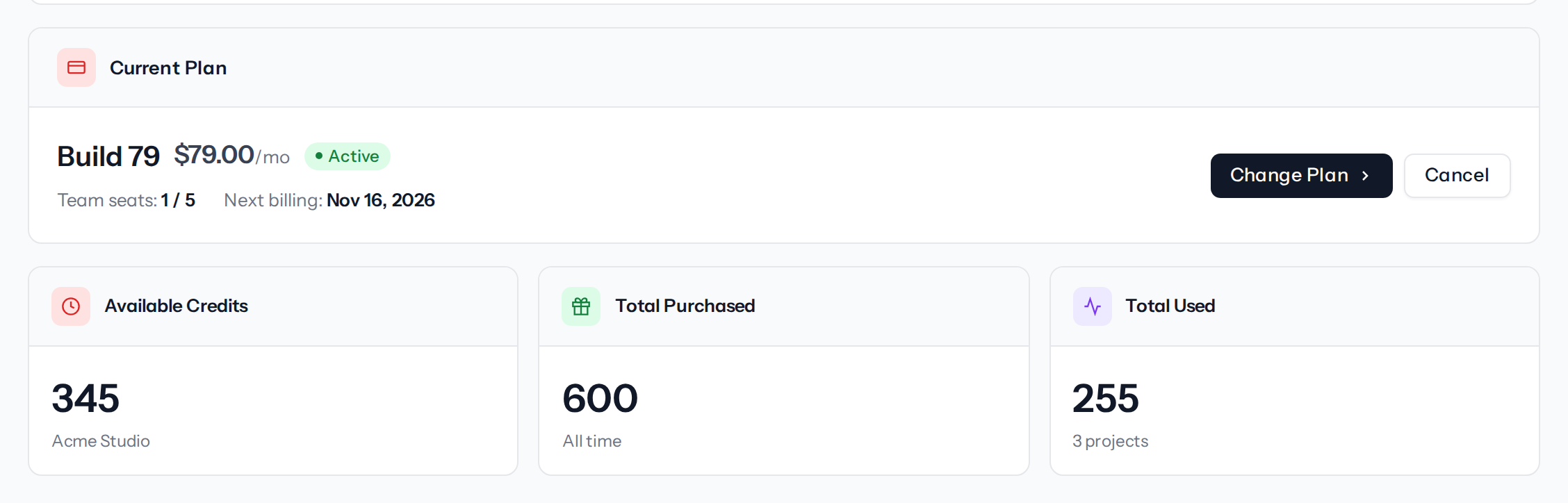
- Available Credits: what the team can spend right now
- Total Purchased: all credits ever added to this team
- Total Used: all credits consumed, with the number of projects that used them
The balance updates immediately after any purchase or usage event.
Plan credits
Each plan includes a monthly credit allowance. Credits are added when you subscribe and refreshed at the start of every billing cycle. Larger Build tiers include more credits per month, and a higher tier gives you more credits per dollar. See Plans & Subscriptions.
- Monthly allowance credits do not roll over. Unused credits are replaced by the new allowance at renewal
- If you cancel or downgrade, remaining credits are forfeited when the current period ends
- Free-plan credits are a one-time starting balance and don't refresh
Buying extra credits
If you run low before your next refill, you can buy a one-time top-up from the Buy Extra Credits card on Plans & Billing.
Top-ups are available on Build plans and can only be bought by the team owner. The card is hidden on the Free and Prototype tiers.
- Use the + and − buttons or type a dollar amount. The card header shows the rate, for example "100 credits for $2", along with the minimum and maximum amounts
- The button updates live to show how many credits you'll receive for that amount
- Click Buy
- Confirm the credits, price, and total in the Purchase Credits dialog and click Confirm Purchase
- You're redirected to Stripe Checkout. Complete payment and your balance updates immediately
Purchased credits never expire and stack on top of your monthly allowance. They are only lost if your subscription ends.
Coupons
Coupon codes are applied at checkout when subscribing to a plan, not on the billing page. In the Subscribe to [plan] dialog, enter the code under Have a coupon? and click Apply. See Applying a coupon for the validation messages.
Transaction history
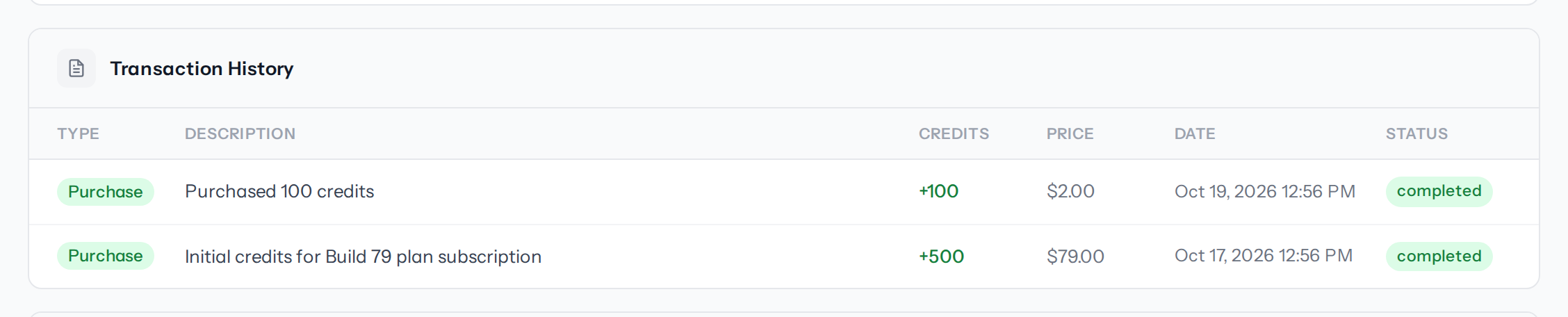
The Transaction History table on Plans & Billing lists every credit event with its type, description, credits, price, date, and status. Each entry is tagged:
| Type | Meaning |
|---|---|
| Purchase | Credits added from a one-time top-up |
| Plan | Credits added by a subscription: the initial allowance and each monthly or yearly refill, plus the Free plan's starting balance |
| Admin | Credits added by StackMivo support, for example a bonus or a goodwill credit |
| Usage | Credits deducted by AI generation |
For a longer view with filters, open Credit History at /credits/history. It shows the same transactions with All / Purchases / Usage filter buttons and pagination.
Invoice history
Team owners also see an Invoice History table with every Stripe invoice. Click View to open the hosted invoice or PDF to download it.
Project usage breakdown
The Credit Usage by Project table shows how many credits each project has consumed, whether it is still active or has been deleted, and when it last used credits. Use it to see which projects cost the most.
Running out of credits
If your team has zero credits and you try to generate:
- The chat form shows a Not enough credits error and offers the upgrade dialog
- Generation via the Agent API returns a
400response with the same message - Mid-stream, generation stops with a
credits_exhaustedevent - The post-generation validation step is skipped with "Validation skipped - insufficient credits"
To continue, buy a top-up, or move to a plan with a larger monthly allowance from Plans & Subscriptions.