

Version Control
Link your GitHub account on the Version Control page, label or unlink it, and control how AI changes are committed and synced from the workspace GitHub Sync settings.
The Version Control page is where you connect the Git account that StackMivo uses to create repositories and push code. Once linked, every project you sync from the workspace goes to that account. The workspace's GitHub Sync settings then show what's connected for each project and let you customise the commit messages.
GitHub is the only provider available today. Bitbucket and GitLab cards are shown on the page marked Coming Soon.
Linking your GitHub account
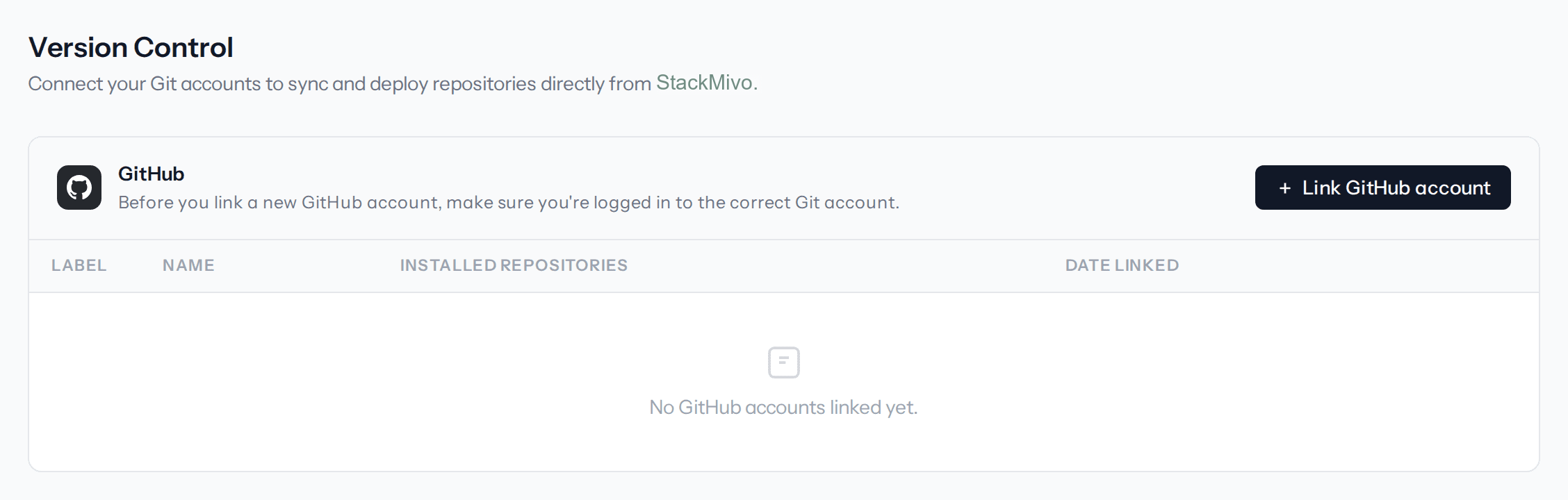
- Click Version Control in the sidebar
- On the GitHub card, click Link GitHub account
- Read the dialog. It reminds you to be signed in to the correct GitHub account in your browser before continuing
- Click Continue with GitHub. You're redirected to GitHub to authorise StackMivo
- Approve the request. StackMivo asks for access to your repositories, your public profile, and your email address
After authorising, the GitHub card shows a row for the linked account.
One GitHub account can be linked per StackMivo user. If you sign in to StackMivo with GitHub, that account is linked automatically. To use a different GitHub account, unlink the current one first.
What the linked account row shows
| Column | Meaning |
|---|---|
| Label | An optional name you give the account, for example "Work" or "Client". Shows - until you set one |
| Name | Your GitHub username |
| Installed repositories | How many of your current team's projects are connected to a repository on this account |
| Date linked | When the link was created or last refreshed |
Two row actions are available: Edit and Unlink.
Labelling the account
Click Edit, type a label of up to 255 characters, and click Save label. Leave the field empty and save to remove a label.
Reauthorising
If pushes start failing with "GitHub rejected our access to this repository", your GitHub token has probably expired or been revoked. Click Reauthorize account on the GitHub card and complete the GitHub flow again. Your projects stay connected to their repositories.
Unlinking
Click Unlink, then confirm with Unlink account. StackMivo forgets the account. Projects that were pushed to repositories on that account keep their code on GitHub, but you won't be able to sync them again until you link an account that has access to those repositories.
Syncing a project to GitHub
Syncing happens from the workspace, not from the Version Control page. Open a project and click Sync with GitHub in the workbench toolbar, or GitHub in the header.
- On the first sync, StackMivo creates a private repository on your linked account, named after the project's unique ID, and pushes the full project to it. The repository opens in a new tab
- On later syncs, it pushes the latest changes to the same repository
- For a project that was imported from GitHub, syncing pushes back to the original repository
Before each push, StackMivo fetches the remote branch and merges any commits that exist only on GitHub. Where the same lines were changed in both places, the StackMivo version is kept. If the merge can't be completed automatically, the push is abandoned and you see a message telling you to resolve the conflict locally.
Syncing to GitHub requires a paid plan and can only be started by the team owner. Other members see the button disabled with a tooltip explaining why.
GitHub Sync settings in the workspace
Open a project, click the Settings tab, then choose GitHub Sync in the left navigation. The card shows four rows:
| Row | What it shows |
|---|---|
| Connected repository | The repository this project pushes to, or Not Connected before the first sync |
| Default branch | Always main. AI commits are pushed to this branch |
| Auto-commit | Always Enabled. Every AI response that changes files is committed automatically |
| Commit message prefix | Text prepended to every AI-generated commit message. Defaults to [StackMivo]. Up to 50 characters |
Change the prefix and click Save changes. This is the only editable setting on the card.
Recent commits
Once the project has at least one commit, a Recent commits list appears below the settings showing the five latest commits with author, relative time, and short hash. When a repository is connected, a View all commits on GitHub link takes you to the full history.
Changes to files under .github/workflows are never included in automatic commits, because the GitHub permission StackMivo requests doesn't allow modifying workflow files. Manage workflow files directly on GitHub.
Troubleshooting
| Message | Cause | Fix |
|---|---|---|
| GitHub rejected our access to this repository. | The stored token has expired or been revoked | Click Reauthorize account on the Version Control page |
| GitHub has changes that conflict with this project and could not be merged automatically. | The same lines were changed on GitHub and in StackMivo in a way that can't be merged | Pull the repository on your machine, resolve the conflicts, push, then sync again |
| GitHub has newer commits than this project and the push was rejected. | A race between two pushes | Sync again. If it keeps failing, pull and push from your machine |
| GitHub rejected the push because it changes files under .github/workflows | A change touched a workflow file | Revert the change to that file and sync again |
| Could not reach GitHub. | Network problem between StackMivo and GitHub | Wait a moment and retry |
| GitHub integration is only available for paid plans. | Your team is on an entry tier | Upgrade to a Build plan from Plans & Billing |
Deployment
Ship your StackMivo projects by pushing the generated code to a GitHub repository, deploying straight to production on Laravel Cloud or your own Laravel Forge servers, or serving a StackMivo-hosted project from your own custom domain.
GitHub Integration
Connect your GitHub account and push any StackMivo project to a repository in one click, then keep it in sync as you continue building.