

Projects
Browse, search, filter, edit, and delete all your StackMivo projects from one place, and manage access to projects shared across your team.
The Projects page gives you an overview of every app you've created or been given access to, across all your teams.
Browsing your projects
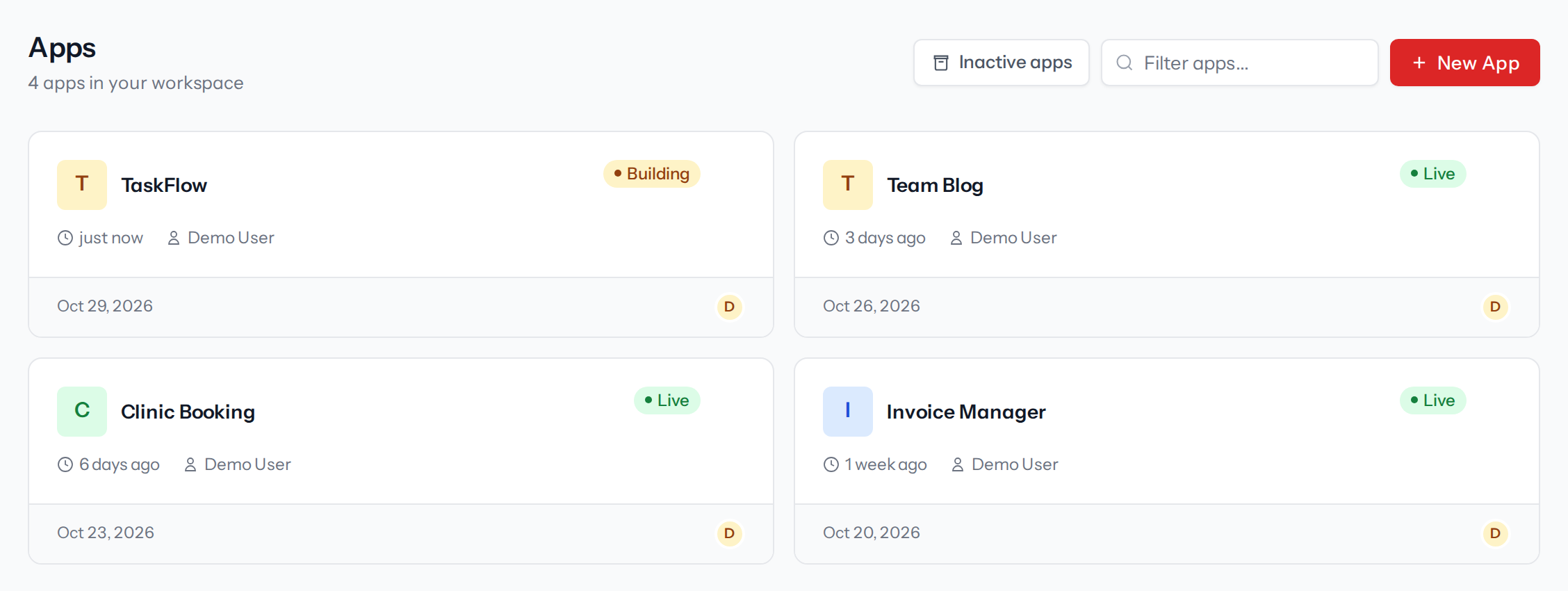
Projects are displayed as cards in a grid, grouped by team. Each card shows:
- Project name
- Status badge:
completed,pending, orfailed - Creator: name and avatar of who generated the project
- Team members: up to 3 avatars, with "+X more" if there are additional members
- Created date
- View in IDE link
Filtering and searching
Use the filter bar at the top of the page to narrow down the list.
| Filter | Options |
|---|---|
| Search | Type any part of the project name or creator's name |
| Type | All Projects / Created by Me / Shared with Me |
| Team | All Teams / select a specific team |
Filters work in real time; the grid updates as you type or change selections.
The result count (e.g. "12 apps") updates dynamically to show how many projects match.
Click Clear All to reset all filters at once.
Project status
| Status | Meaning |
|---|---|
completed | Generation finished successfully: app is live |
pending | Generation is in progress or the container is starting |
failed | Generation encountered an error. Check the IDE for details |
Opening a project
Click View on any project card to open it in the IDE. From the IDE you can:
- Edit files
- Run the application
- Send follow-up AI prompts
- Push to GitHub or deploy to Laravel Cloud
Editing project details
- Open the project in the IDE or go to the project's detail page
- Click Edit Project
- Update the name, description, or original prompt
- Click Save Changes
Deleting a project
Project deletion is permanent and cannot be undone. All generated files, container resources, and conversation history are removed.
To delete a project:
- Hover over the project card and click the trash icon in the top-right corner
- A confirmation modal appears listing everything that will be deleted:
- Container and its volumes
- All project files
- Conversation history
- Confirm by clicking Delete Project
- A progress bar tracks the cleanup, and the page reloads automatically when done
Shared projects
If a team owner has shared a project with you, it appears in your Projects list under the relevant team.
- Shared projects show the original creator's name and avatar
- Access is granted per project by the team owner in Team Settings. There are no separate view and edit levels: access always includes full editing in the IDE
- A few actions stay limited to the project's creator or the team owner regardless of access, such as deleting the project, downloading the ZIP, or deploying it
Environment Variables
Manage each project's .env values from the IDE: add your own variables, edit system values, and reveal or hide secrets, all injected at build and runtime.
Teams
Create teams, invite members, control per-project access, and collaborate on StackMivo projects with a shared credit balance and integrations.