

Reviewing the Build Plan
For new full-stack apps, StackMivo writes a plan first and waits for your approval before it builds anything. Learn what the plan shows, what Approve and Reject do, and how credits are charged.
When you generate a new app in Build mode, StackMivo doesn't start building immediately. It first reads your prompt, designs the application, and shows you a build plan. Nothing is provisioned until you approve it. This lets you catch a misunderstanding before several minutes of generation and a container are spent on it.
The plan step applies to new projects in Build mode only. Prototype-mode generations, follow-up prompts in an existing project, template projects, and projects created from Telegram or the Agent API go straight to building.
What happens after you submit
- You submit a Build-mode prompt on the Chat screen
- A Build plan dialog opens over the page. While the AI works, the heading moves through Understanding your idea…, Designing your app…, and Writing your plan…
- The plan streams in section by section. When it's complete the heading reads Here's what we'll build for you
- You choose Approve & build or Reject
Submit a Build-mode prompt
From the Chat screen. Nothing is provisioned yet.The AI writes a plan
App name, purpose, features, screens, and data. This step uses credits.You decide
Approve & build
A container is provisioned, the code is generated against the plan, and you land in the workspace in about 4 to 5 minutes.Reject
The proposed project is removed, no container is created, and your prompt goes back into the chat box.
The dialog header shows the stack the app will use (Blade, Livewire, Vue, or React) and an estimate of ~5 min to build.
Reading the plan
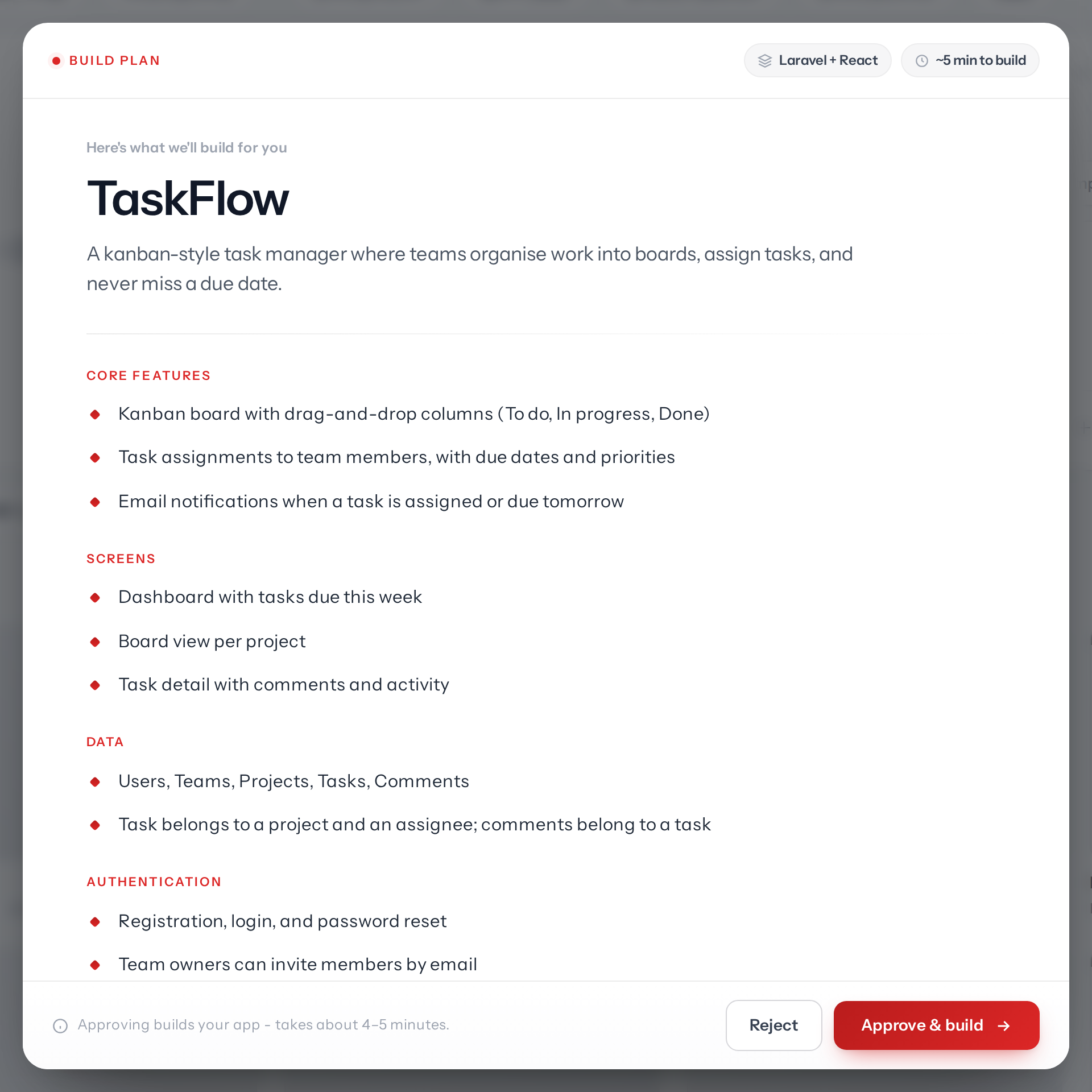
The plan opens with the proposed app name and a one-line statement of what the app is for. Below that, the AI lays out the application in sections, typically covering the main features, screens, and data it intends to create. Sections that are still being written show a placeholder shimmer until they arrive.
Read it as a specification. If a feature you asked for is missing, or something is included that you don't want, reject the plan and adjust your prompt rather than approving and fixing it afterwards.
Approve & build
Click Approve & build. The dialog closes and the normal container progress screen takes over with Setting up your project workspace…. StackMivo provisions the container, generates the code according to the plan, runs validation, and redirects you to the workspace when the app is live. This typically takes 4 to 5 minutes.
Reject
Click Reject to discard the plan. There's no confirmation step. The proposed project is removed from your project list, no container is created, and your original prompt is put back in the chat box so you can refine it and submit again.
Credits
Writing the plan is an AI step and uses credits, in the same way any generation does. Rejecting a plan does not refund those credits, because the AI work was already done. Approving charges credits for the build itself as generation proceeds.
If your team runs out of credits during the plan step, the run stops and you're prompted to top up. See Credits.
Leaving and coming back
You don't have to keep the tab open. If you close the page or refresh while a plan is waiting for your decision, the dialog reopens the next time you visit the Chat screen, as long as the plan is less than 2 hours old. Older plans are treated as stale and ignored.
If you submit a new prompt while a plan is still waiting, StackMivo shows the message You already have a plan awaiting approval and reopens the existing plan instead of starting a second project.
When no plan appears
If your prompt isn't something that can be built, for example a greeting or a general question, the AI finishes without producing a plan. The dialog closes, no project is created, and you're returned to the chat form.
Troubleshooting
| Message | Meaning | Fix |
|---|---|---|
| Something went wrong while preparing your plan. | The AI stream failed mid-plan | Reject and submit the prompt again |
| Could not start the build. Please try again. | Approval was accepted but the build couldn't be queued | Wait a moment and click Approve & build again |
| You already have a plan awaiting approval. | A previous plan is still open | Approve or reject the existing plan first |
Build & Prototype Modes
Choose how StackMivo generates your app (a full-stack Build or a static Prototype) and pick the tech stack it targets, from Blade to React, Vue, or Livewire.
Ready Templates
Start a project from a ready, working application instead of a blank prompt: preview a live demo, create your copy in one click without spending credits, then customise it in chat.